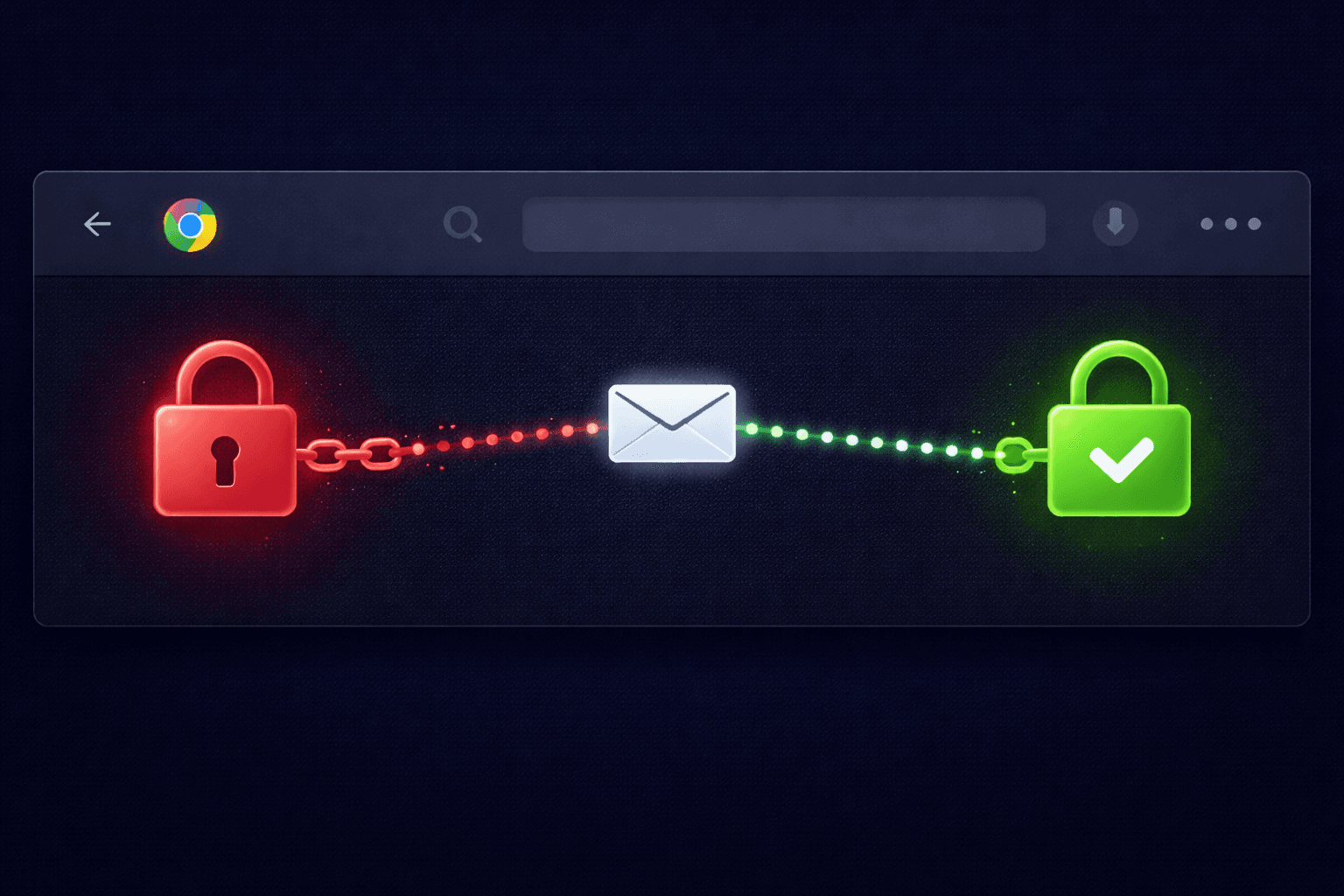
You open an email in Gmail and see a scary red icon: a broken padlock. Google warns you that "messages you send to this address might not be private." What does this mean?
It's About the Journey, Not the Destination
When you send an email, it travels through multiple servers before reaching its destination. Think of it like a postcard moving through the postal system.
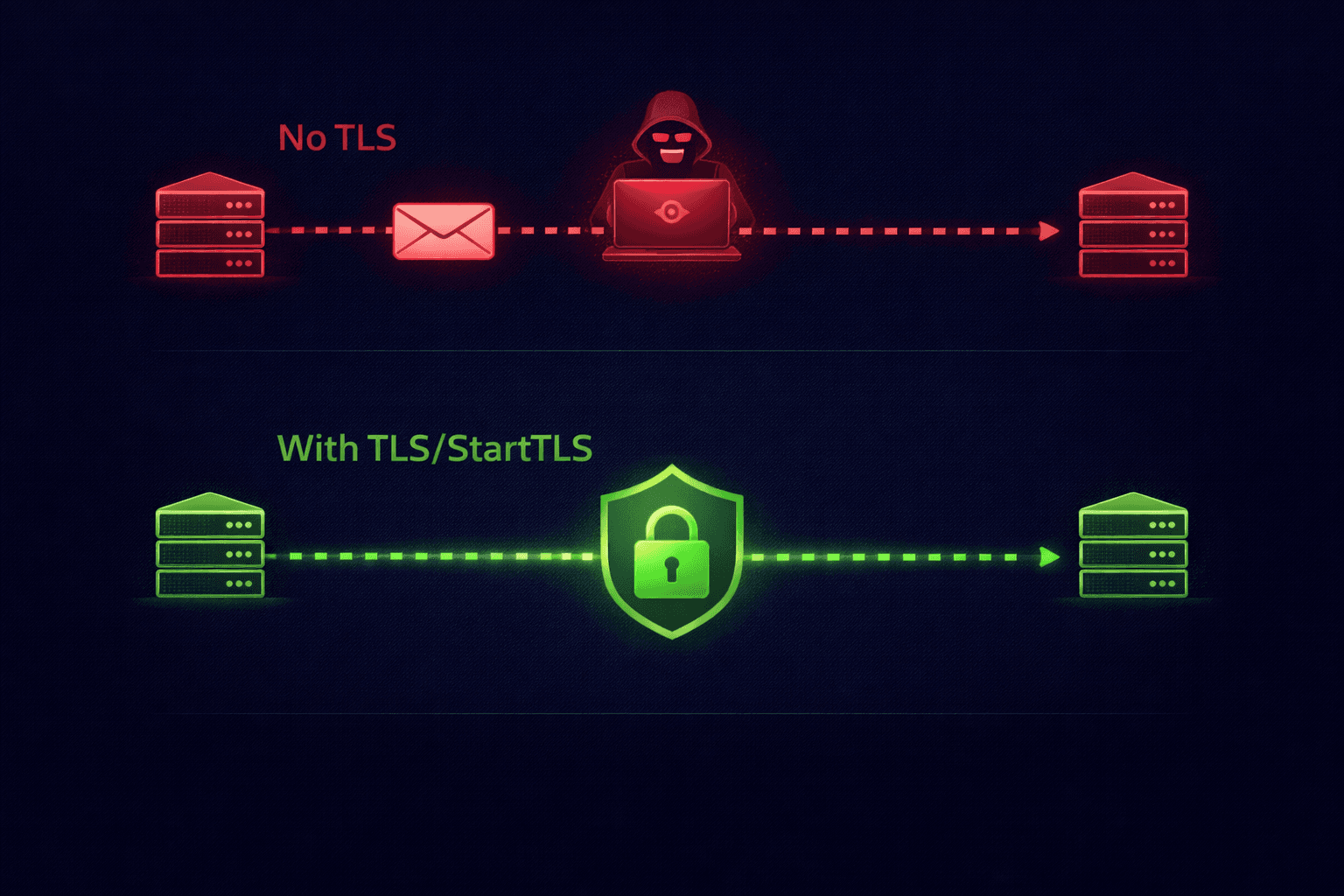
Without encryption, anyone handling that postcard (your ISP, the recipient's ISP, a hacker on public Wi-Fi) can read the message. This plain-text transmission is the default for old email systems.
Enter StartTLS
To fix this, modern email servers use a protocol called StartTLS (Transport Layer Security).
When Server A contacts Server B to deliver an email, it asks: "Do you speak encryption?"
- Yes: The connection is upgraded to SSL/TLS. The "postcard" becomes a sealed envelope.
- No: The email is sent in plain text.
The Red Padlock Warning
If Google sees that the recipient's server refused encryption, it shows the red broken padlock. It means the email was sent "in the clear."
Why Would a Server Refuse Encryption?
- Legacy Systems: Old corporate mail servers often have expired SSL certificates or outdated software that doesn't support modern TLS.
- Misconfiguration: The IT team might have set up the receiving server incorrectly, leaving port 587 or 25 exposed without STARTTLS support.
- Man-in-the-Middle Attack: A hacker might be actively intercepting the connection and stripping the encryption command (Downgrade Attack).
Is My Email Safe?
If you see the warning, assume the email was read by others. Do not send passwords, credit card numbers, or sensitive documents to that recipient until they fix their server.
How to Check Yourself
You can inspect the headers of any email to see if it was encrypted in transit. Look for the Received header.
Received: from mail.example.com ...
(version=TLS1_2 cipher=ECDHE-RSA-AES128-GCM-SHA256 bits=128/128); ...
If you see version=TLS or ESMTPS (the 'S' stands for Secure), the connection was encrypted.
Too Technical? Let Us Do It.
Paste the header into our Analyzer Tool. We'll show you an easy "Encrypted: Yes / No" badge — no TLS knowledge required.
Check Encryption Status